
What will you find in this article?
- Requirements and target audience: Who is this feature intended for, and what criteria must documents meet?
- Starting an AI analysis: How to initiate an automatic analysis of a single bid document.
- Working with the analysis results: Explanation of how to view results, provide feedback, and cite sources.
- Comparing proposals: How to compare multiple proposals side by side and download a comparison.
Summary
You initiate an AI analysis by opening a proposal document (PDF) from the Inbox, Messages, or Submitted Documents. The system automatically generates an overview that you can view, check for sources, and export to Excel. To compare proposals, use the comparison tool to merge multiple proposals to immediately highlight the differences.
Requirements and Target Audience
This article is intended for buyers and work planners who use the AI module in 12Build. To perform a successful analysis, the following conditions must be met:
- The document must be of the Proposal file type.
- The file must be in PDF format.
- The file must not be a scan (image).
Start AI analysis
You can activate the AI analysis in various places within the platform by clicking on a quote document.
- Navigate to one of the following locations:
- Communication -> Inbox
- Communication -> Messages
- Search -> Messages
- Documents -> Submitted Documents
- Click on the desired quote document.
- The Document Viewer opens automatically.
- The system immediately starts performing the AI analysis. You will see a progress indicator (this takes up to one minute).

Working with the analysis results
Once the analysis is complete, you can review and manage the data.
- Use the up and down arrows to show or hide specific parts of the analysis.
- Click Show Source to verify where the AI found the information in the document.
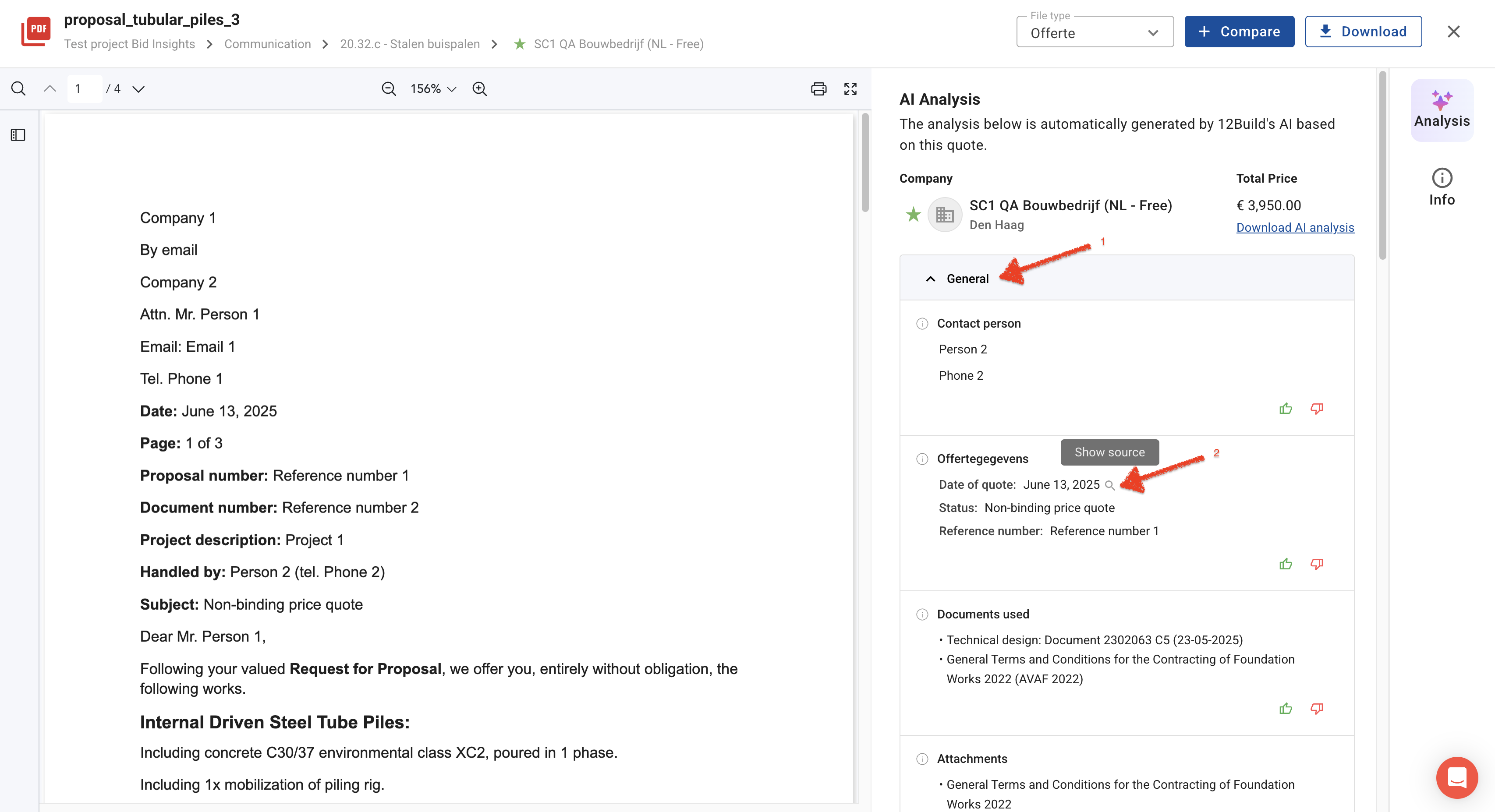
- Provide feedback on the results if any information is incorrect or missing by clicking the feedback options.

- Click the Download button to save the results as an Excel file.
Compare Proposals
In addition to analyzing a single proposal, you can also compare multiple proposals.
- In Communication, select the workpackage and click the Compare with AI button.

- Select the proposals you wish to compare.
- Click the Compare Proposals button once you have selected two or more documents.
- Review the differences in the overview. You can also view the source or provide feedback for each section here.

- Click Download AI Analysis to export the full comparison in Excel format.
- You can also initiate a comparison by clicking the Compare button in the AI analysis of a single Proposal.
- Manage comparison:
- Click the Add Proposal button to include additional proposals in the comparison.
- Remove a proposal from the comparison by clicking Remove.
Watch this video to learn how to use AI Bid Insights.
Frequently Asked Questions (FAQ)
Question: Why can’t I analyze my PDF proposal?
Answer: The document is likely a scanned PDF. The AI can only read text in digital PDF files. If you cannot select the text in the PDF with your mouse, it is an image and cannot be analyzed.
Question: What should I do if the file type is not set to “Proposal”?
Answer: Only documents of the 'Proposal' type are analyzed. You can correct this manually by using the File Type drop-down menu next to the document in the platform and selecting the correct category.
Troubleshooting
- Symptom: The AI analysis does not start or displays an error message.
- Cause: The document type is not set to 'Proposal'.
- Solution: Manually change the file type to 'Proposal' using the drop-down menu.
- Symptom: The analysis remains empty or indicates that no text was found.
- Cause: The file is a scan (image) rather than a digital PDF.
Solution: Request a digital version of the proposal from the co-maker or use an OCR tool to make the PDF readable.