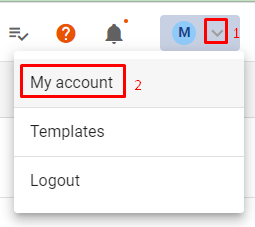
What will you find in this article?
-
Summary: A brief overview of the options available in your account settings.
-
Terms and target audience: Who this article is written for and what you need.
-
Profile: Updating your personal information, photo, and language settings.
-
Locations: An overview of the organizational structures you are linked to.
-
Security: How to securely change your username and password.
-
Sessions and devices: Overview of active connections and hardware in use.
-
Notifications: Configuring email and in-app notifications for updates and publications.
-
API: Reference to information about external integrations.
Summary
In 'My Account,' you manage all personal aspects of your 12Build profile, from contact information and login details to specific notification preferences. Depending on your role (General contractor or Subcontractor), you can customize how you receive information about projects and relationships here.
Prerequisites and Target Audience
This article is intended for all 12Build users who want to manage their personal profile. To adjust these settings, you must have active login credentials for the 12Build platform.
Profile
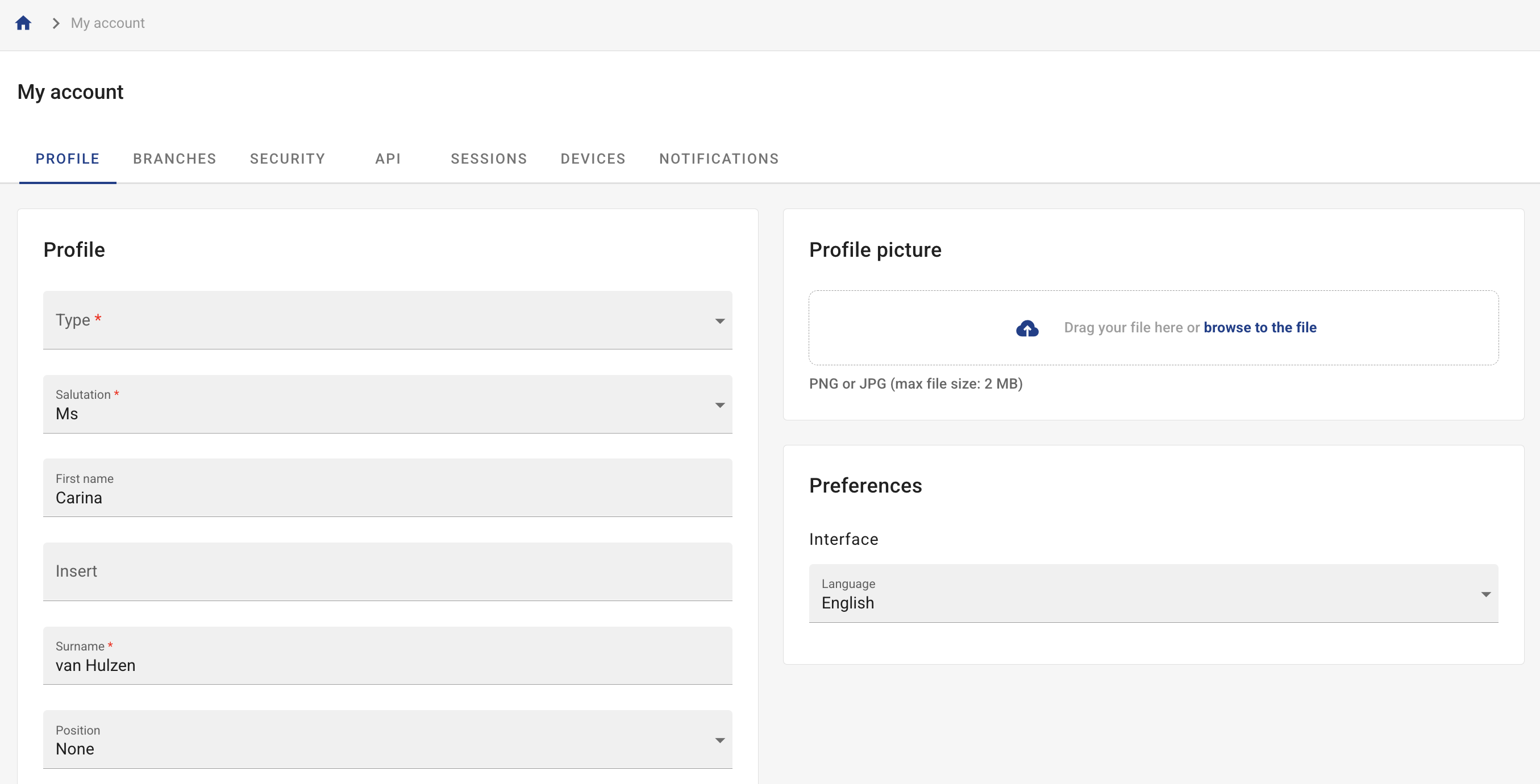
In the Profile tab, you can edit the general information used in your digital signature for requests for proposals.
-
Go to the Profile tab.
-
If necessary, change your title, name, job title, (mobile) phone number, fax number, email address, or employee ID. [Image: Overview of personal data fields in the Profile tab]
-
If desired, add a photo of yourself.
-
Select the desired language for the platform interface.
Locations
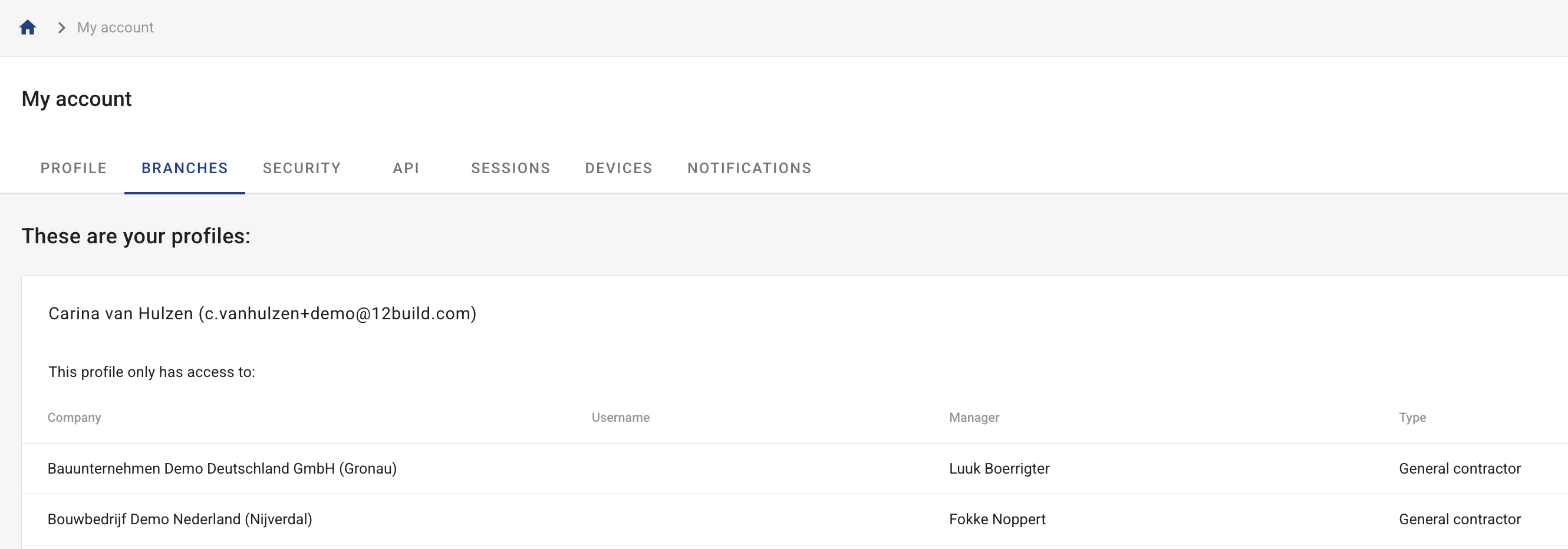
This tab is visible if your organization has multiple locations and you have been assigned to multiple locations.
-
Click on the Locations tab.
-
View the list of all locations to which you have been added. [Image: List of linked locations]
-
Verify whether accounts with distinct login credentials are present in this overview.
Security
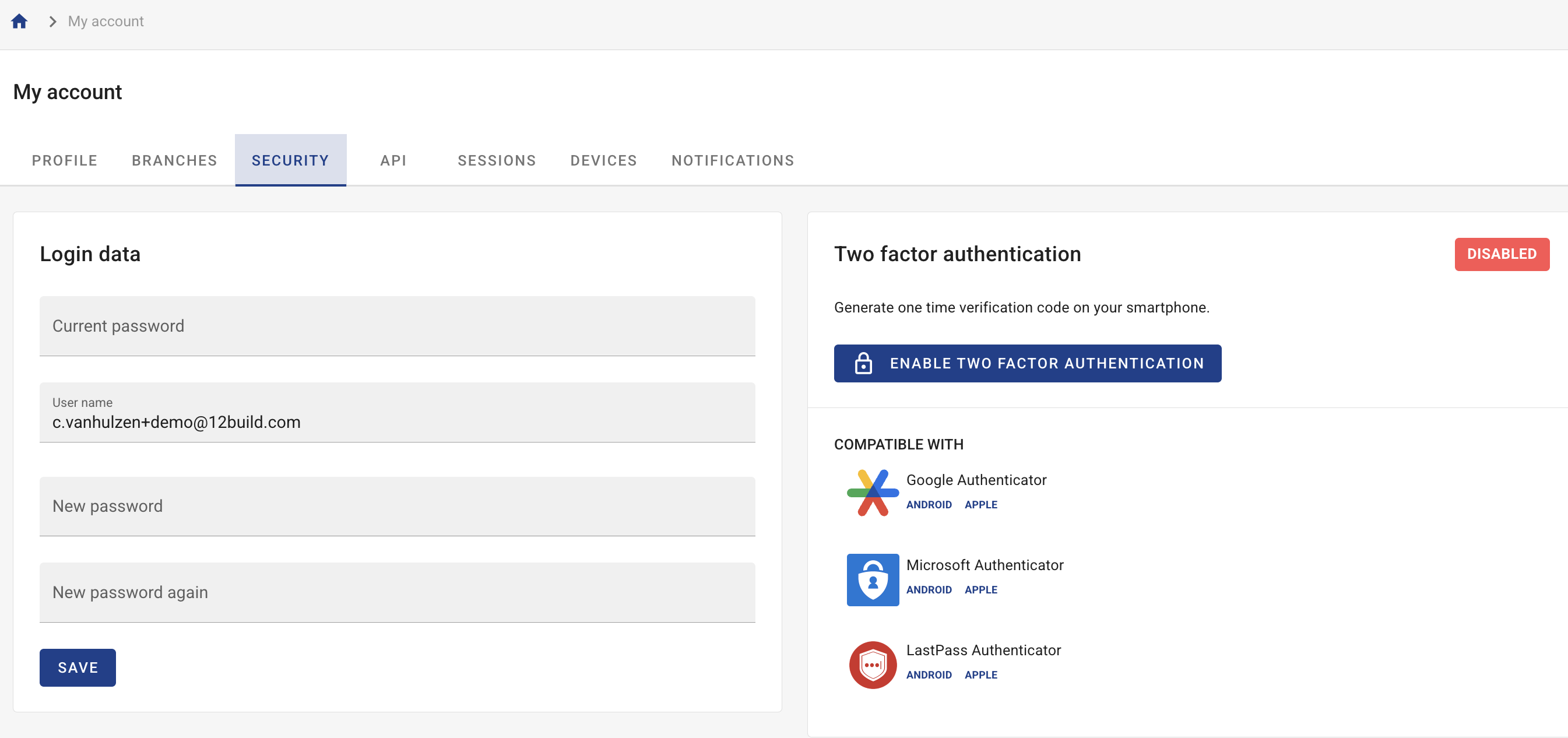
Here you can manage access to your account by keeping your login credentials up to date.
-
Navigate to the Security tab.
-
To change your username: enter the new name in the red field and enter your current password in the Current Password field for verification. [Image: The red field for changing the username, including password verification]
-
To change your password: enter a new password under the username heading and also enter your current password in the red field here.
Sessions and Devices
In these sections, you can check the security of your account by seeing where and how you are logged in.
-
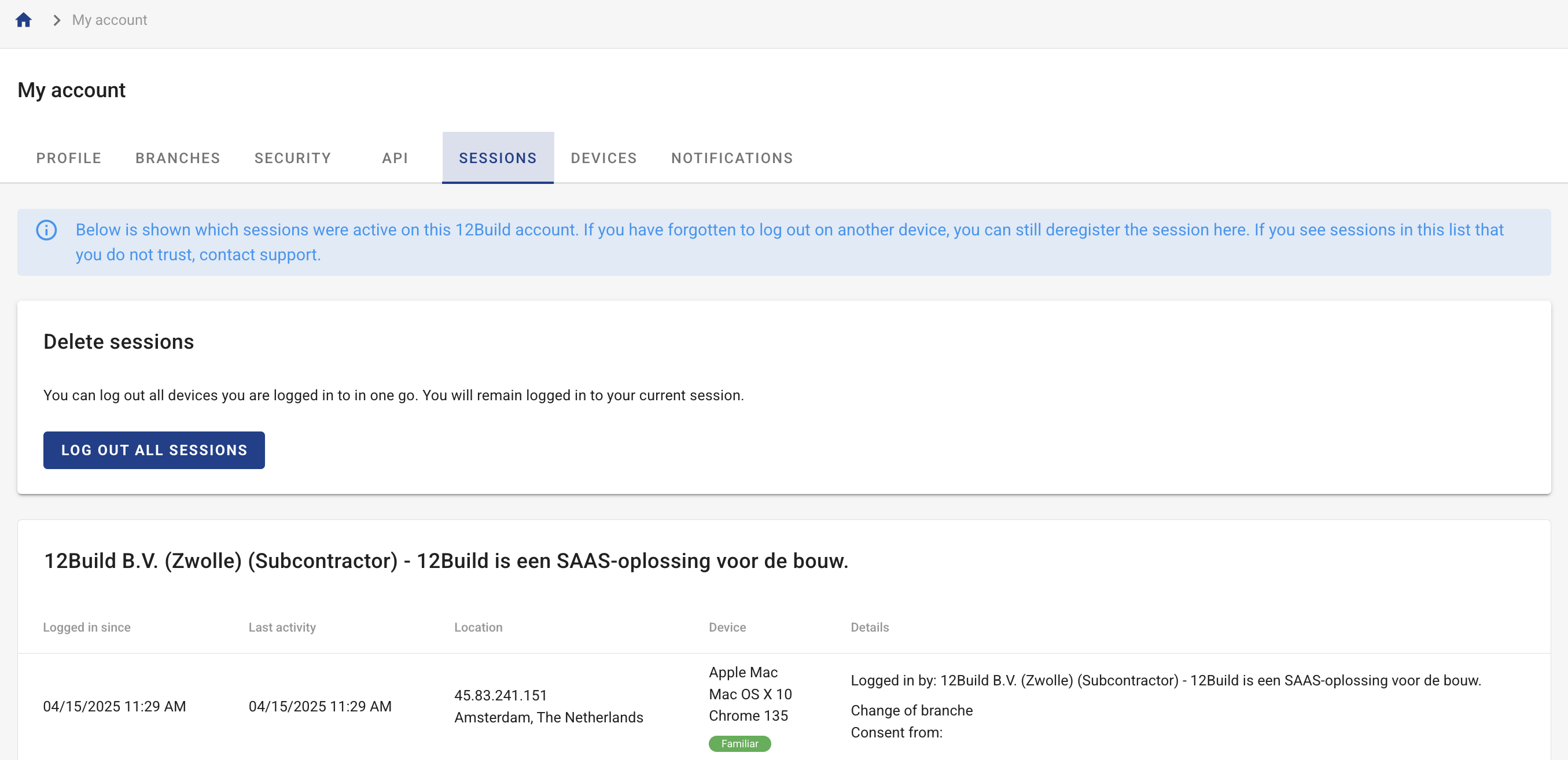
Go to Sessions to see which devices you are currently logged in on.
-
Click "Sign out" for a specific session if you forgot to log out on another device. [Image: List of active sessions and the sign-out button]
-
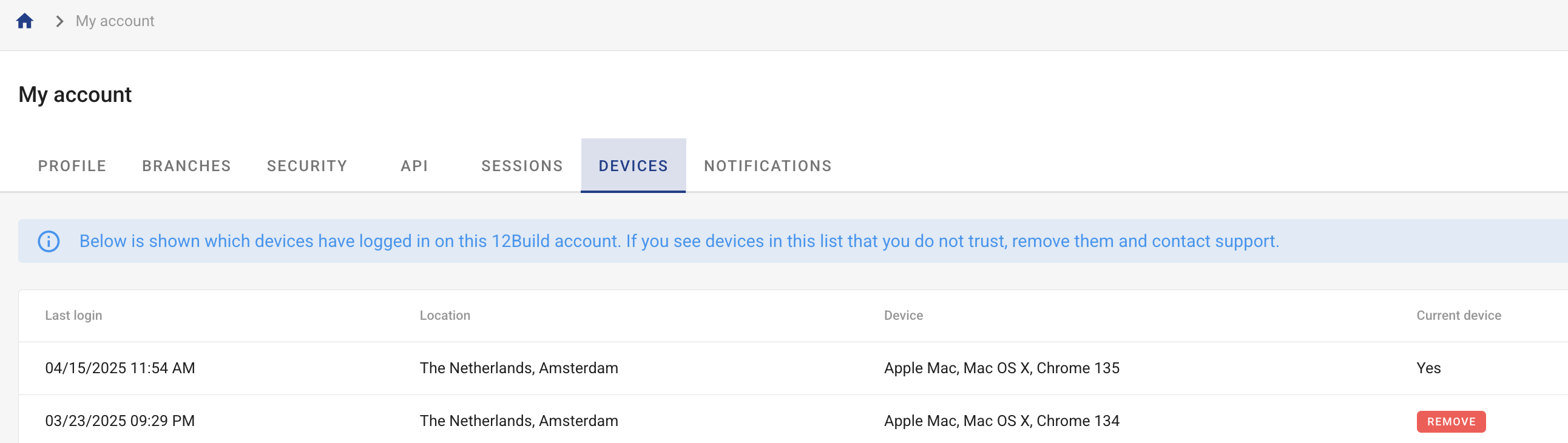
Under Devices, view the history of devices that have accessed your account.
-
If you notice any unfamiliar devices, please contact us immediately at support@12build.com.
Notifications
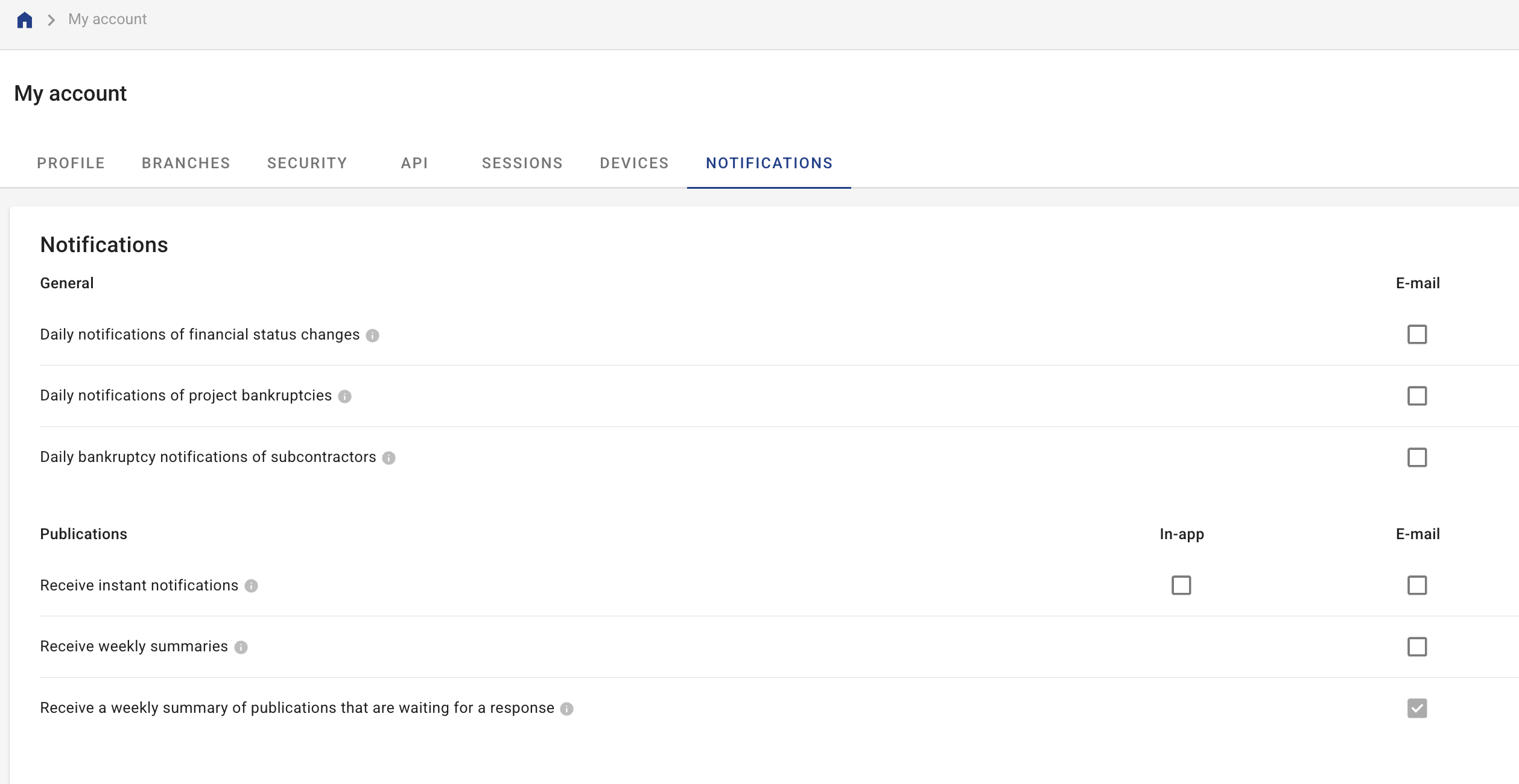
Here, you can specify which notifications you wish to receive via email or within the app (in-app).
-
Click on the Notifications tab.
-
For General Contractors (under General): Specify per location and country whether you want to receive daily emails about financial status changes, project bankruptcies, or bankruptcies of Subcontractors. [Image: Settings for financial and bankruptcy notifications]
-
For Publications: Choose whether you want to be notified immediately or weekly about comments on publications or pending approvals.
-
Select the desired delivery method for each notification type: email, in-app, or both.
API
A dedicated tab is available for integrating 12Build with other software packages.
-
Go to the API tab.
-
Refer to the specific article on API usage for further instructions on how to set this up.
Frequently Asked Questions (FAQ)
Question: Why don’t I see the “Locations” tab? Answer: This tab is only visible if your organization has multiple locations and you are linked to more than one location in the system.
Question: Why do I have to enter my current password when I change my username? Answer: This is an extra security step to verify that you are indeed the authorized user making the change.
Troubleshooting
-
Symptom: The information in my email signature is incorrect.
-
Cause: The information in your profile tab is not up to date.
-
Solution: Go to Profile and update your contact information; this will automatically be reflected in your signature.
-
-
Symptom: I am not being notified of new comments on my post.
-
Cause: Notifications are turned off for this feature.
-
Solution: Go to Notifications > Posts and check the desired email or in-app notifications.
-
From there, there are five, six, or seven tabs:
We will discuss the features for each tab.
Profiel
In the Profile tab, you can edit your general information, such as your title, name, position, (mobile) phone number, fax number, email address, and employee ID number (if applicable). This information will be included in your signature when sending requests for proposals. Therefore, this information must be kept up to date. You can also add a photo of yourself.
In this tab, you can also select the language you want for your interface.
Locations
If your organization has multiple locations and you have been added to multiple locations, you will also have this tab.
In this tab, you will see an overview of all the locations where you have been added.
You may have two accounts with different login credentials; this will also be reflected in this overview. For more information on linking your accounts, see this article.
In this tab, you can change your username and password.
In the red field, you can change your username when you are logged in. IMPORTANT! When changing your username, it is important that you also enter your current password in the "Current password" field in this red area.
When changing your username, you can set a new password. Again, it is important to enter your current password in the red field.
API
For more information on using the API, see this article.
Sessions
Below, you can see which devices you are currently logged in with on 12Build. If you forgot to log out on another device, you can still log out of that session here. If you see any devices in this list that you don’t recognize, please contact support@12build.com.
Devices
Below is a list of the devices you are (or have been) logged in to 12Build with. If you see any devices in this list that you do not recognize, please contact support@12build.com.
Notifications
Here you can easily set which notifications you want to receive via email or in-app. This way, you’ll always stay up to date on important updates.
General (for General contractors only)
Under the "General" heading, you can indicate whether you want to receive daily email notifications about:
-
Financial status changes
-
Project bankruptcies
-
Bankruptcies of subcontractors
These notifications help you quickly gain insight into the financial situation of the parties you work with.
Note: You set this up per location and can select specific countries.
Publications (for General contractors)
You can also receive notifications regarding publications:
-
Immediate notifications when subcontractors have responded to your publication
-
A weekly summary of all subcontractors who have responded to your publication
-
A weekly summary of pending postings from all subcontractors still awaiting your approval or rejection
You can specify for each type of notification whether you want to receive it via email, in-app, or both.
Posts (for Subcontractors)
You can receive notifications regarding postings: