To use document mapping, you must be a company group manager within the 12Build account. The 12Build support team can set this up for you. Please email your request to us at support@12build.com.
Step 2: Organization settings
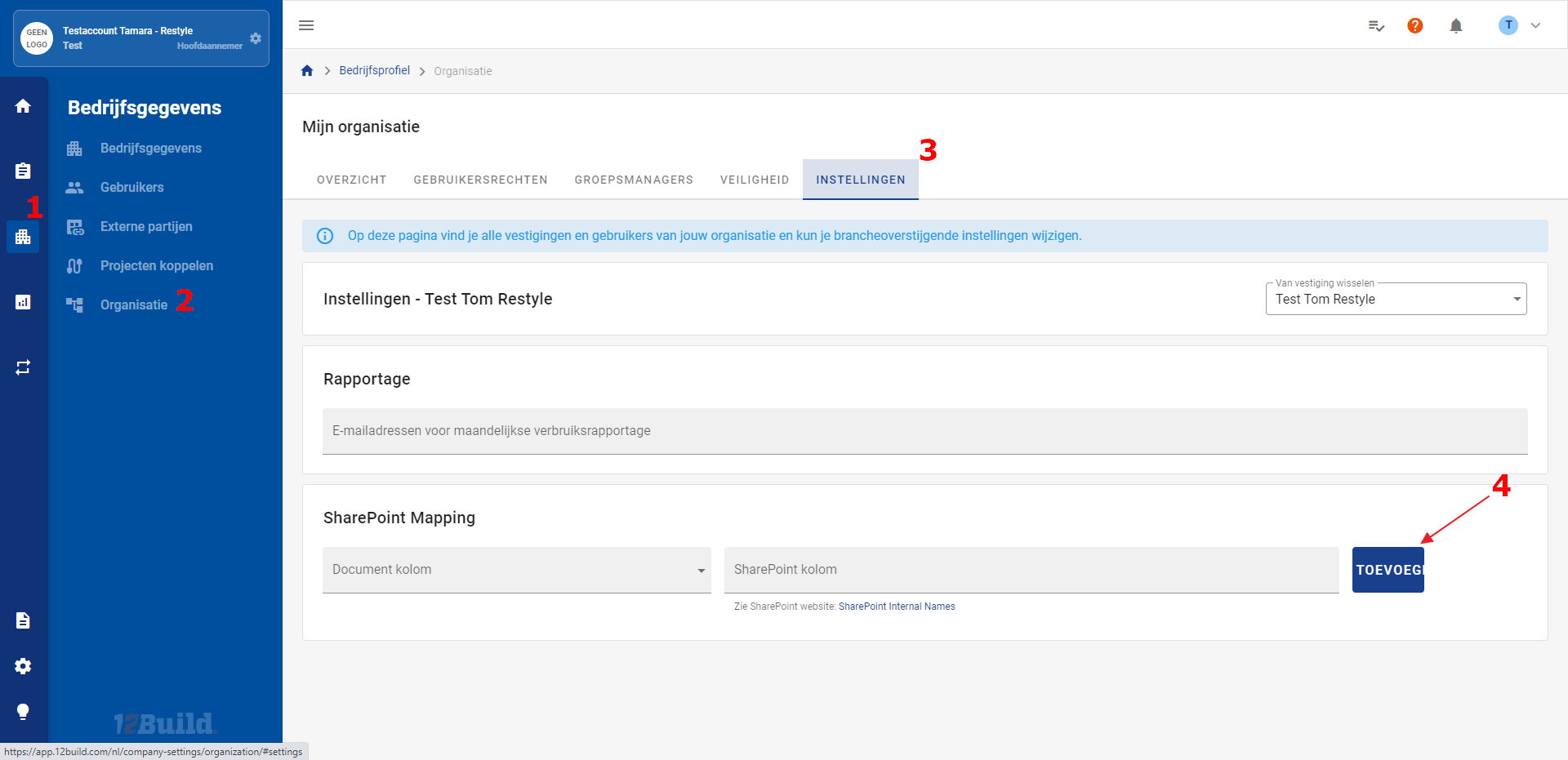
If you are a company group manager, you have access to the organization settings.
In the organization settings, you can create mappings for SharePoint and Autodesk BIM 360. To do this, first select an existing document property within 12Build from the “Document Column” dropdown. Then, in the field below, enter the name of the document property from the external system. After that, you can add the mapping using the blue “Add” button (4).
For more information, visit the SharePoint website.
The column values can also be retrieved via the Graph API:
https://docs.microsoft.com/en-us/graph/api/listitem-get?view=graph-rest-1.0&tabs=http
GET https://graph.microsoft.com/v1.0/sites/{site-id}/lists/{list-id}/items/{item-id}?expand=fields
In the mapping, you can specify which external document fields should be transferred to 12Build document properties.

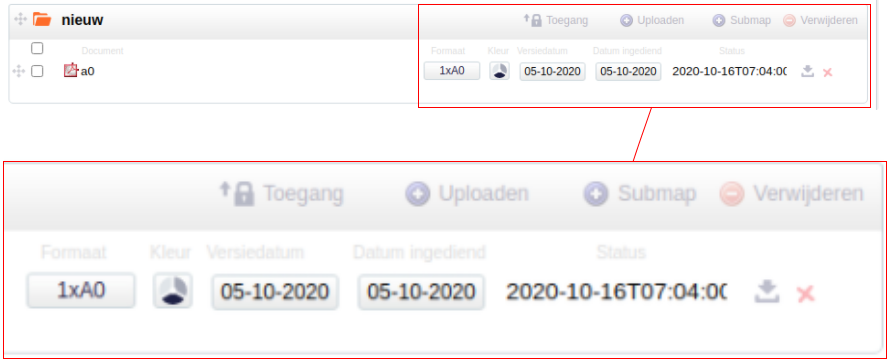
These columns are included in the view within 12Build:

The two mappings above are reflected here on the document page in 12Build: