
What will you find in this article?
-
Real-time updates: How changes made by subcontractors become visible immediately.
-
Manual status updates: The different statuses you can manage yourself.
-
Notifications and display: How to manage status email settings for each project.
-
Visual cues: The use of colors in the overview.
Summary
Status changes made by subcontractors are updated in real time in your communication overview. You can also manually adjust statuses if you receive information outside the system. Additionally, you can set up a weekly email for each project with an overview of all recent changes.
Prerequisites and Target Audience
This article is intended for project managers and buyers who monitor the progress of quotation processes. You need access to a project to adjust the specific mailing settings.
Manually updating statuses from subcontractors
When a subcontractor calls or emails you with an update, you can process this directly in 12Build so your colleagues are also informed.
-
Go to the Communication overview.
-
Click on the current status of the relevant Subcontractor.
-
Select the new status from the available list:
-
Unknown
-
In progress
-
Calculating / Not calculating
-
Proposal to follow
-
Proposal
-
In budget
-
Awarded / Not awarded
-
-
Privacy option: Click the closed eye icon if you wish to keep a status change internal and not make it visible to the subcontractor.
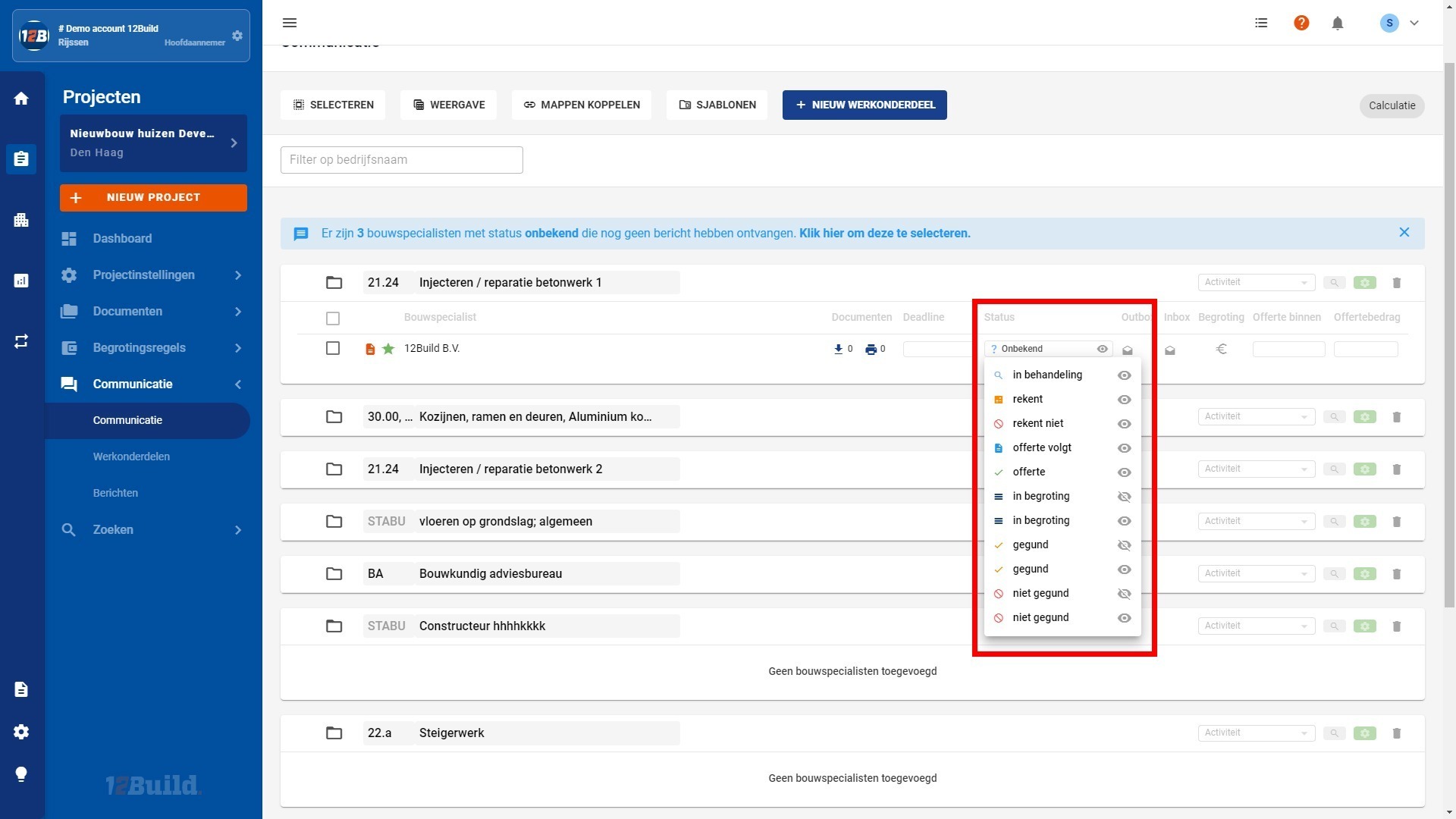
Status updates are visible in real time within the application.
In addition to the real-time view in the app, you can receive reports via email.
-
Open the specific project for which you want to receive updates.
-
Adjust the preference for the weekly mailing within the project settings.
-
Use this setting to view the latest collected status updates for the project immediately.
-
Note: This is a setting you can manage separately for each project.
-

Add color to your overview
For a clearer visual overview, statuses can be assigned colours.
-
The (sub)administrator of the company profile can assign colors to specific statuses.
-
Once this is set up, these colors are immediately applied in the communication overview for all users within the organization.
Frequently Asked Questions (FAQ)
Question: Why don’t I see a change made by a subcontractor right away? Answer: Status changes are real-time. If you expect a change but don’t see it, refresh the page of your communication overview.
Question: Can I receive a daily email with updates? Answer: The default setting in 12Build is a weekly email per project to keep the number of emails to a minimum. You can view real-time updates directly in the application itself.
Troubleshooting
-
Symptom: The subcontractor sees a status that I have changed internally.
-
Cause: The 'closed eye' icon is not activated for this status.
-
Solution: Click the eye icon next to the status to hide it from the external party.
-
-
Symptom: I do not see any colors in my overview.
-
Cause: No colors have been assigned to the statuses in the company profile yet.
-
Solution: Ask the sub-administrator of your company profile to set the desired colors for the different statuses.
-