
In this article, we will demonstrate how to import documents from Docstream in a few straightforward steps. As a general contractor, you can transfer the required documents to your project in Matchmaker and share them with subcontractors.

Step 1. Set up the connection between 12Build and Docstream
The integration with Docstream works via our general contractor API. The user must generate an API key in 12Build and send it, along with their 12Build username, to Pro4all via email at support@pro4all.nl.
The API key is entered into Docstream so that Docstream can retrieve information from the user’s 12Build account.
-
To do this, the user must be a (sub)administrator in 12Build.
-
Only one user needs to be linked, as all export operations in Docstream are performed through this user.
Click here to view the API manual for general contractors.
Step 2. Set up Docstream
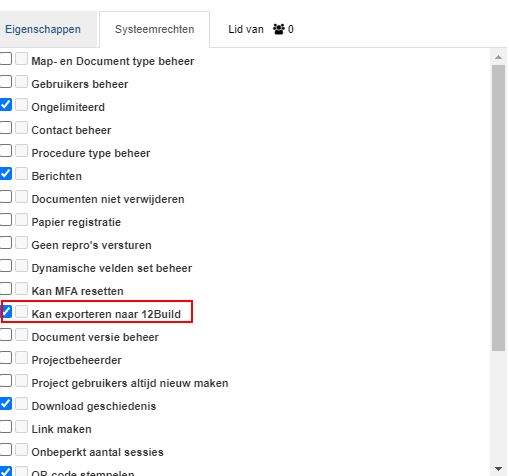
For users authorized to use the 12Build export, the system permission "Can export to 12Build" must be enabled. You can find this under "Extra" --> "Users and Groups" --> "System Permissions."
If the integration does not work immediately, the following issues may be causing it:
-
Are you the (sub)administrator of the environment?
-
Is the username correct? This is not necessarily the same as the email address.
-
Was the API key copied correctly?
-
Is the list of projects empty?
In the Docstream environment, select the documents you wish to import into the project in 12Build. Documents displaying a colored 12Build logo are already present; documents showing a gray 12Build logo have not yet been included.
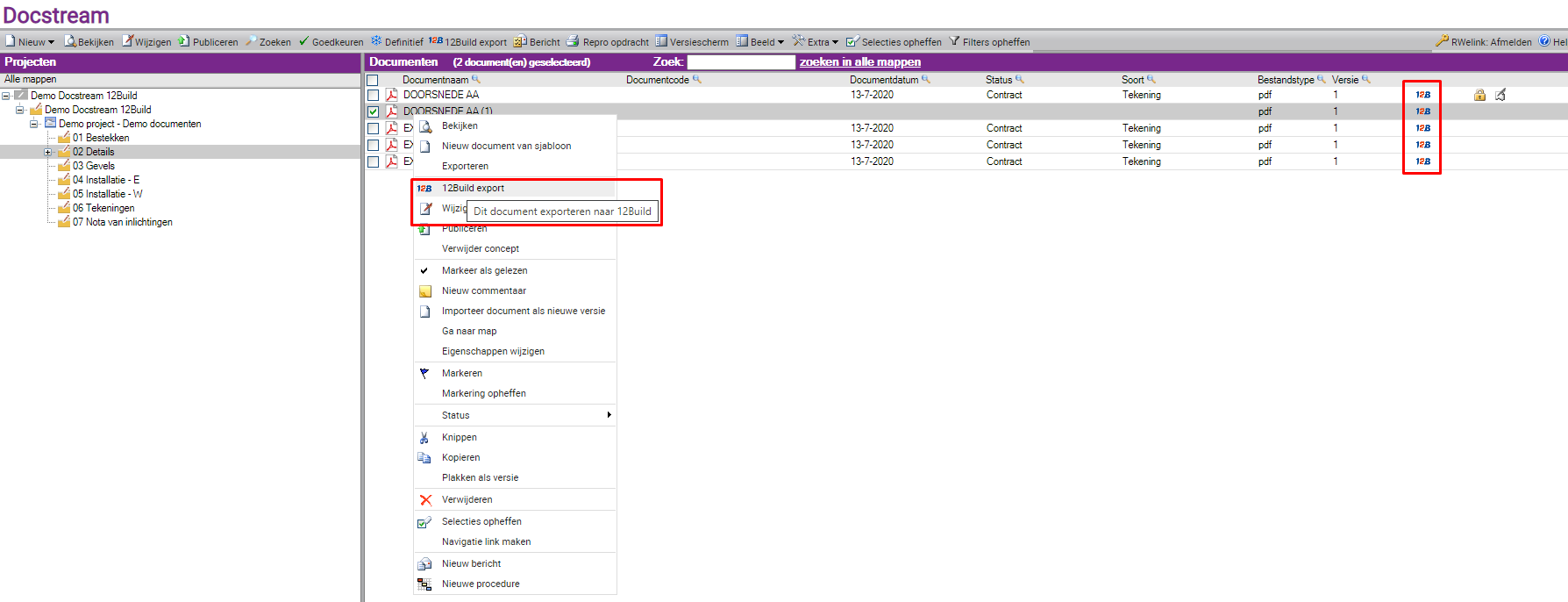
The “12Build export” button is located in the top bar and can also be accessed by right-clicking on the document. When you click this button, a window will appear showing all projects available to you on 12Build.
Select the project and the correct phase, then click 'Export'.
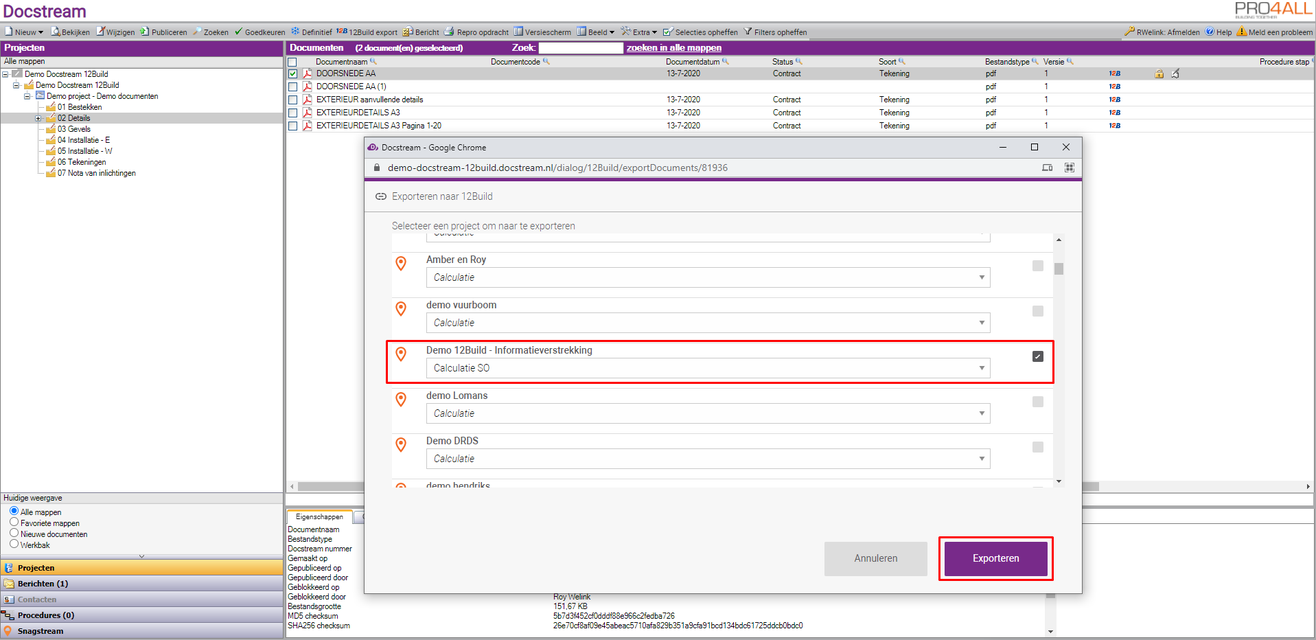
The documents are not immediately available to subcontractors within the project. The documents are placed in the “External synchronization documents” folder, which has an icon depicting a closed eye.

You must first drag the documents to the desired folder so that you can share them with the subcontractors in the project.